
Wireshark 抓取 ZigBee 3.0 数据包
学习提示
这是一篇纯工具教程:怎么把"空中飞过的 ZigBee 3.0 数据包"抓下来、看清楚。理解了它,你在看组网过程、排查通信问题时就能"眼见为实"。
一句话理解
Wireshark 原生就能解析 IEEE 802.15.4 / ZigBee 帧,但"抓包"这一步需要硬件配合——用 TI CC2531 USB Dongle 刷成嗅探器,通过命名管道或 extcap 把空中的无线帧"喂"给 Wireshark,再配好密钥就能解密 ZigBee 3.0 的应用层数据。
抓包全流程(总览)
<div style="display:flex;align-items:stretch;gap:10px;">
  <div style="width:34px;height:34px;border-radius:50%;background:#1e6fd9;color:#fff;display:flex;align-items:center;justify-content:center;font-weight:700;flex-shrink:0;margin-top:6px;">1</div>
  <div style="flex:1;background:#fff;border:1px solid #dbe4ee;border-left:4px solid #1e6fd9;border-radius:8px;padding:10px 14px;">
    <div style="font-size:15px;font-weight:700;color:#0f2a43;">备硬件:CC2531 USB Dongle</div>
    <div style="font-size:13px;color:#42526b;margin-top:4px;">插上电脑装好 USB 驱动(设备管理器出现 <b>CC2531 USB Dongle</b>)。没有 CC2531 时可用 CC2530 + USB 底板代替。</div>
  </div>
</div>
<div style="width:2px;height:14px;background:#1e6fd9;margin-left:17px;"></div>

<div style="display:flex;align-items:stretch;gap:10px;">
  <div style="width:34px;height:34px;border-radius:50%;background:#1e6fd9;color:#fff;display:flex;align-items:center;justify-content:center;font-weight:700;flex-shrink:0;margin-top:6px;">2</div>
  <div style="flex:1;background:#fff;border:1px solid #dbe4ee;border-left:4px solid #1e6fd9;border-radius:8px;padding:10px 14px;">
    <div style="font-size:15px;font-weight:700;color:#0f2a43;">烧嗅探固件</div>
    <div style="font-size:13px;color:#42526b;margin-top:4px;">用 <b>SmartRF Flash Programmer</b> 烧录 sniffer 固件(在 TI <b>Packet Sniffer</b> 安装包内,注意是 PACKET-SNIFFER 不是 PACKET-SNIFFER-2)。烧好后 Dongle 只"听"不"说"。</div>
  </div>
</div>
<div style="width:2px;height:14px;background:#1e6fd9;margin-left:17px;"></div>

<div style="display:flex;align-items:stretch;gap:10px;">
  <div style="width:34px;height:34px;border-radius:50%;background:#1e6fd9;color:#fff;display:flex;align-items:center;justify-content:center;font-weight:700;flex-shrink:0;margin-top:6px;">3</div>
  <div style="flex:1;background:#fff;border:1px solid #dbe4ee;border-left:4px solid #1e6fd9;border-radius:8px;padding:10px 14px;">
    <div style="font-size:15px;font-weight:700;color:#0f2a43;">建数据通道(三选一)</div>
    <div style="display:flex;flex-wrap:wrap;gap:8px;margin-top:8px;">
      <div style="flex:1;min-width:200px;background:#eef4fc;border-radius:6px;padding:8px 10px;font-size:12px;color:#1d3a5c;"><b>方案A · TI 官方(推荐教学)</b><br>打开 Packet Sniffer(TiWsPc):Device Configuration 选设备 → 选信道 → Start,生成命名管道 <code style="background:#dde8f7;padding:0 4px;border-radius:3px;">\\.\pipe\tiwspc_data</code></div>
      <div style="flex:1;min-width:200px;background:#eef4fc;border-radius:6px;padding:8px 10px;font-size:12px;color:#1d3a5c;"><b>方案B · Sensniff(开源/Linux)</b><br>刷 sensniff 固件 → <code style="background:#dde8f7;padding:0 4px;border-radius:3px;">python sensniff.py</code> 桥接 → Wireshark 经 UDP <b>17754</b> 接收</div>
      <div style="flex:1;min-width:200px;background:#eef4fc;border-radius:6px;padding:8px 10px;font-size:12px;color:#1d3a5c;"><b>方案C · 离线分析</b><br>用 Packet Sniffer/ZTool 先抓,导出 <code style="background:#dde8f7;padding:0 4px;border-radius:3px;">.pcap</code>,再用 Wireshark 打开</div>
    </div>
  </div>
</div>
<div style="width:2px;height:14px;background:#1e6fd9;margin-left:17px;"></div>

<div style="display:flex;align-items:stretch;gap:10px;">
  <div style="width:34px;height:34px;border-radius:50%;background:#1e6fd9;color:#fff;display:flex;align-items:center;justify-content:center;font-weight:700;flex-shrink:0;margin-top:6px;">4</div>
  <div style="flex:1;background:#fff;border:1px solid #dbe4ee;border-left:4px solid #1e6fd9;border-radius:8px;padding:10px 14px;">
    <div style="font-size:15px;font-weight:700;color:#0f2a43;">Wireshark 接入</div>
    <div style="font-size:13px;color:#42526b;margin-top:4px;">实时抓包:用管道启动 <code style="background:#eef2f7;padding:0 4px;border-radius:3px;">wireshark -i \\.\pipe\tiwspc_data -k</code>(或选 Sensniff extcap 接口);离线则直接 File → Open 导入 .pcap。</div>
  </div>
</div>
<div style="width:2px;height:14px;background:#d97706;margin-left:17px;"></div>

<div style="display:flex;align-items:stretch;gap:10px;">
  <div style="width:34px;height:34px;border-radius:50%;background:#d97706;color:#fff;display:flex;align-items:center;justify-content:center;font-weight:700;flex-shrink:0;margin-top:6px;">5</div>
  <div style="flex:1;background:#fff;border:1px solid #f2d9a8;border-left:4px solid #d97706;border-radius:8px;padding:10px 14px;">
    <div style="font-size:15px;font-weight:700;color:#7c4a03;">配置解析与解密(关键)</div>
    <div style="font-size:13px;color:#42526b;margin-top:4px;">Edit → Preferences → Protocols → <b>Zigbee</b>:Security Level 选 <b>AES-128 Encryption, 32-bit Integrity</b>;点击 Edit 添加 TC Link Key(默认全局密钥 <code style="background:#fdf3e2;padding:0 4px;border-radius:3px;">ZigBeeAlliance09</code>);抓自己的网络就填 Network Key。</div>
  </div>
</div>
<div style="width:2px;height:14px;background:#d97706;margin-left:17px;"></div>

<div style="display:flex;align-items:stretch;gap:10px;">
  <div style="width:34px;height:34px;border-radius:50%;background:#d97706;color:#fff;display:flex;align-items:center;justify-content:center;font-weight:700;flex-shrink:0;margin-top:6px;">6</div>
  <div style="flex:1;background:#fff;border:1px solid #f2d9a8;border-left:4px solid #d97706;border-radius:8px;padding:10px 14px;">
    <div style="font-size:15px;font-weight:700;color:#7c4a03;">抓包与触发流量</div>
    <div style="font-size:13px;color:#42526b;margin-top:4px;">点击开始捕获,然后去操作真实设备:协调器建网、设备入网(Beacon → 关联 → Device_annce)、按键控制、数据上报。空中的帧会全部落在 Wireshark 里。</div>
  </div>
</div>
<div style="width:2px;height:14px;background:#0f8a5f;margin-left:17px;"></div>

<div style="display:flex;align-items:stretch;gap:10px;">
  <div style="width:34px;height:34px;border-radius:50%;background:#0f8a5f;color:#fff;display:flex;align-items:center;justify-content:center;font-weight:700;flex-shrink:0;margin-top:6px;">7</div>
  <div style="flex:1;background:#fff;border:1px solid #bfe3d2;border-left:4px solid #0f8a5f;border-radius:8px;padding:10px 14px;">
    <div style="font-size:15px;font-weight:700;color:#0a5f42;">过滤与分析</div>
    <div style="font-size:13px;color:#42526b;margin-top:4px;">显示过滤器:<code style="background:#e6f4ee;padding:0 4px;border-radius:3px;">wpan</code>(802.15.4 帧)、<code style="background:#e6f4ee;padding:0 4px;border-radius:3px;">zbee_nwk</code>(网络层)、<code style="background:#e6f4ee;padding:0 4px;border-radius:3px;">zcl</code>(应用命令);也可用 Statistics 看信道/节点统计。</div>
  </div>
</div>
⚠ 三个最常踩的坑:① 信道必须和网络一致(ZigBee 2.4G 信道 11–26,TiWsPc 里可设 0xFFFF 全扫);② 不加密钥只能看到组网过程(Beacon/关联/宣告),想解析 ZCL 应用命令必须配密钥;③ 嗅探器和节点要在同一空间且保持近距离,否则丢帧。
一. 准备清单
| 类别 | 项目 | 说明 |
|---|---|---|
| 硬件 | CC2531 USB Dongle(或 CC Debugger + CC2530) | TI 嗅探硬件;本页实操用的是 CC Debugger + CC2530 |
| 软件 | SmartRF Flash Programmer | 烧录嗅探固件 |
| 软件 | TI Packet Sniffer(TiWsPc) | 设备配置、选信道、生成命名管道;固件也在这里面 |
| 软件 | TI Wireshark Packet Converter | 把管道数据转发为 UDP 17754(见下方实操截图) |
| 软件 | Wireshark(3.x 及以上) | 原生内置 802.15.4 / ZigBee 解析器,无需插件 |
二. 分步操作
第 1 步:烧录嗅探固件
- 嗅探硬件有两种常见形态:CC2531 USB Dongle 或 CC Debugger + CC2530(本页实操用的是后者,TiWsPc 里会识别为 CC Debugger / CC2530);
- 用 SmartRF Flash Programmer 烧录 Packet Sniffer 安装目录里的 sniffer 固件;
- Dongle 烧写时若 LED 慢闪提示进入 DFU 模式:按住 RESET 的同时插 USB 即可。
第 2 步:建立数据通道(推荐方案 A)
- 打开 TI Packet Sniffer,进入 Device Configuration,勾选你的嗅探设备(本页实操:CC Debugger,芯片 CC2530),并在 Configuration 里选要监听的 IEEE 信道(如 Channel 11),然后点 Start:
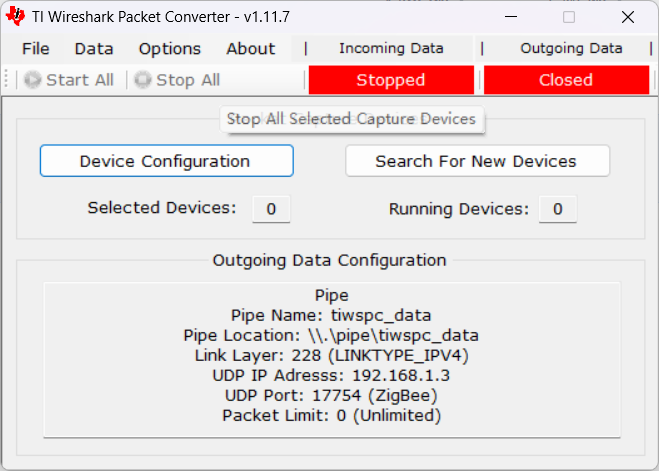
- 工具创建命名管道
\\.\pipe\tiwspc_data,把空中帧往管道里送。如果需要跨机器 / 转发,用 TI Wireshark Packet Converter 把管道数据转成 UDP(默认端口 17754,对应 Wireshark 的 ZigBee 接口):

第 3 步:Wireshark 实时抓包
- 在 Wireshark 快捷方式的"目标"里加上
-i\\.\pipe\tiwspc_data -k(-i指定从管道读数据,-k表示启动即开始捕获):
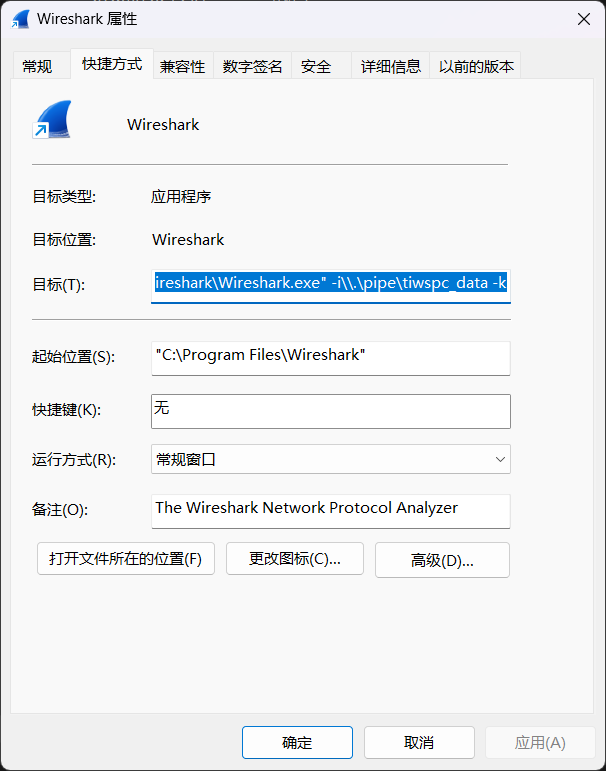
- 若走 Packet Converter 转发,则在 Wireshark 的捕获接口里选 UDP 17754 接口(Linux 下也可用 Sensniff 的 extcap)。
第 4 步:配置解密(看应用层必做)
Edit → Preferences → Protocols,找到 Zigbee;- Security Level 选择
AES-128 Encryption, 32-bit Integrity Protection; - 点击 Edit(TC Link Key 列表)添加密钥:
- 抓商业 ZigBee 3.0 设备:用公开全局密钥
ZigBeeAlliance09(hex:5A 69 67 62 65 65 41 6C 6C 69 61 6E 63 65 30 39); - 抓自己 Z-Stack 搭的网络:填工程的 Network Key(协调器组网时下发的那把)。
- 抓商业 ZigBee 3.0 设备:用公开全局密钥
第 5 步:触发与抓取
- 点击开始捕获后,让节点动起来:协调器建网 → 设备入网 → 按键 → 上报;
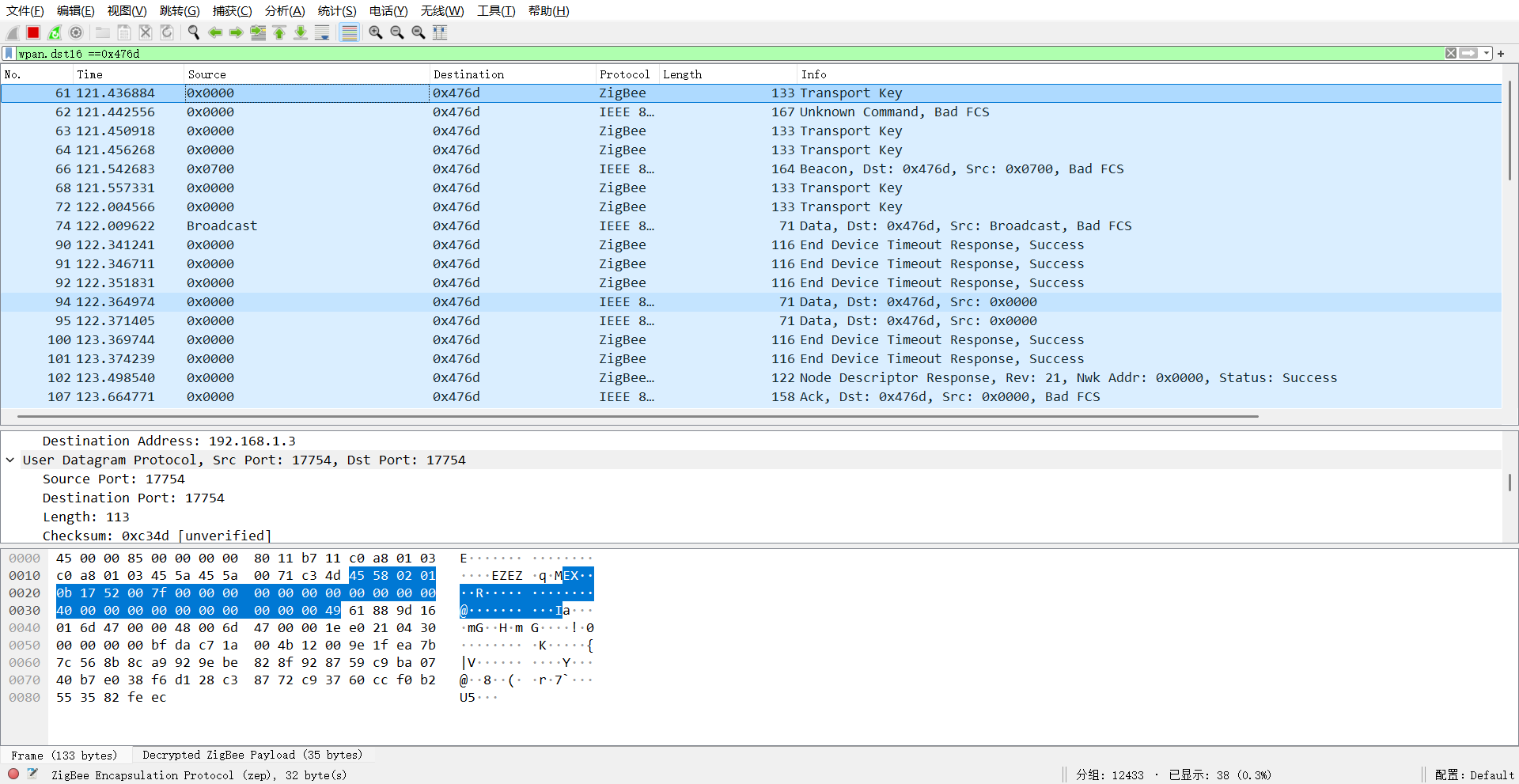
- 观察捕获窗口:Beacon、关联请求/响应、Device_annce、数据帧会依次出现。下面是一张真实抓包结果:过滤器
wpan.dst16 == 0x476d只看发往该节点的帧,列表里能看到 Transport Key(密钥传输)、Beacon、End Device Timeout Response(终端超时轮询)、Node Descriptor Response(节点描述响应),底部显示 Decrypted ZigBee Payload (35 bytes)——说明密钥已配对、应用层已成功解密:
第 6 步:过滤分析
| 过滤表达式 | 看到什么 |
|---|---|
wpan | 所有 IEEE 802.15.4 帧 |
zbee_nwk | ZigBee 网络层帧(含路由、命令) |
zcl | 应用层 ZCL 命令(需已解密) |
wpan.src_pan == 0xABCD | 只看某个 PAN 网络的帧 |
三. 课堂演示建议
- 只抓组网过程(Beacon、关联、短地址分配、Device_annce):不用配密钥就能讲清楚——正好和"网络管理三讲"里的设备管理、地址分配对应,学生能"看到"入网三连:认证 → 分配 → 宣告;
- 再看一次 ZCL 命令:配好密钥后,按键开灯那一下的开关命令收发就完全可见,与应用层实验呼应;
- 课堂没条件买 Dongle 时,可以先抓一份 pcap 存成素材,课堂用 Wireshark 打开做分析演示。
小结
抓包 = 硬件监听(CC2531 嗅探器)+ 通道喂数(管道/extcap)+ 解析解密(Wireshark 配置)。信道一致、密钥配对、近距离监听,三步做对,ZigBee 3.0 的每一帧都逃不出你的眼睛。